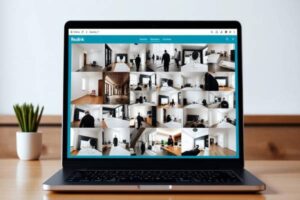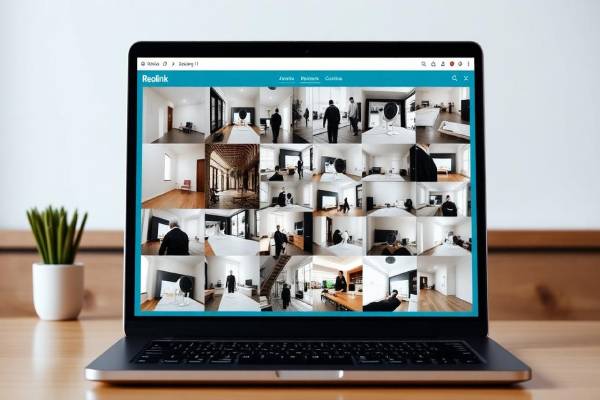
If you own one camera or a wall of them, the Reolink App for PC turns your computer into a serious home security command center. A big screen, a real mouse, and a stable Ethernet line make live view, playback, and event review easier than any phone could ever be.
I have been testing security camera software for years on my own home network, and the Reolink desktop app is one of the very few that I actually keep pinned to my taskbar. In this guide I will walk you through everything I wish someone had told me when I started — what Reolink is, how to download the Reolink Client on Windows 11 and Windows 10, how to log in, how to push a firmware update without bricking a camera, and how it stacks up against Tapo and Ring.
What is Reolink?
Reolink is a consumer and small-business security camera brand known for affordable wired and Wi-Fi cameras, PoE bullet and turret models, battery-powered Argus cameras, and full NVR kits. The company sells in more than 200 countries and ships hardware that talks to a single, well-designed app ecosystem.
That ecosystem has three pieces:
- The Reolink mobile app for iOS and Android.
- The Reolink Client, a native desktop app for Windows and macOS.
- A browser-based viewer for individual cameras on your local network.
The Reolink desktop app is the most powerful of the three. It supports more cameras on screen at the same time, makes long playback sessions easy, and gives you direct access to advanced configuration that the phone app hides behind menus.
Features of the Reolink App for PC
The Reolink software is free, lightweight, and packed with features that hobby installers and small business owners actually use. Here is what stands out after a year of daily use on my home network.
Multi-camera live view
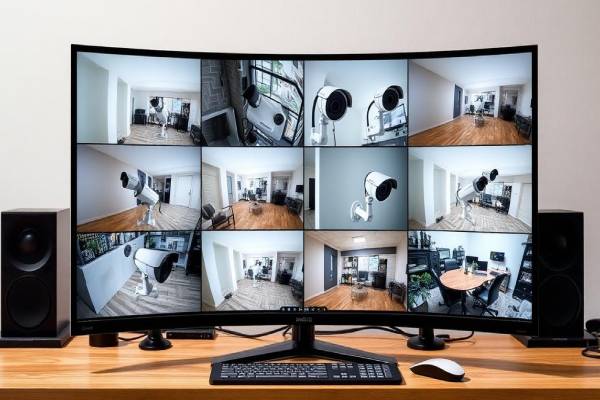
You can watch up to 36 cameras at once in a single grid. I usually run a 3×3 view on my main monitor and a single full-screen feed on a second display.
Smooth playback timeline
Scrub across hours of recorded video using the colored timeline at the bottom. Motion events and person or vehicle detections show up as colored marks so you can jump straight to what matters.
Smart event filters
Newer Reolink cameras filter people, vehicles, pets, and packages on the camera itself. The desktop app lets you search recordings by event type, which saves a lot of fast-forwarding.
Local storage support
The Reolink Client can pull recordings from a microSD card inside the camera, from a Reolink NVR, or from an FTP server on your network. No cloud subscription required.
Two-way talk and PTZ control
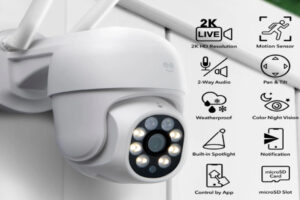
Cameras with a speaker and microphone support full two-way audio from your PC. Pan, tilt, and zoom cameras get an on-screen joystick.
Easy export
Right-click any clip to export it as an MP4. The file lands in a folder of your choice — handy for sharing with police, insurance, or family.
How to download Reolink App for Windows 11 and Windows 10
Unlike many smart home brands, Reolink offers a real native desktop app. There is no emulator required and the download is free. Here is the safest way to grab the latest reolink download.
Open the official Reolink Download Center
In your browser, go to reolink.com/download-center. Always start from the official Reolink Download Center. Random third-party download portals often bundle adware or shipped outdated installers, which is the single most common reason people end up with login issues.
Choose Client Software
Pick the Client tab, then select Windows. The page detects your operating system automatically, but you can switch between Windows 11, Windows 10, and macOS manually.
Start the Reolink Client download
Click the blue Download button. The installer is around 90 MB and saves to your Downloads folder. Both Windows 11 and Windows 10 (64-bit) are fully supported, and the same installer works on Windows 11 ARM through built-in x64 emulation.
Verify the file
Before you run any installer, check that the file name starts with Reolink_Client and ends with .exe. Right-click the file, choose Properties, and confirm the digital signature is from Reolink Innovation Limited. If it is not signed by Reolink, delete the file and start the reolink software download again.
How to install the Reolink Client
Installing the Reolink desktop app is one of the smoothest setups I have ever done — a refreshing change after years of fighting with security software.
Run the installer
Double-click the downloaded file. Windows SmartScreen may pop up. Click More info, then Run anyway, because the publisher is verified.
Choose a folder
Stick with the default install location unless you have a reason to change it. The app uses about 250 MB on disk, and recordings can be stored anywhere later.
Finish setup
Click Install, wait about a minute, then choose Launch Reolink Client. The app opens to an empty device list, ready for you to add your first camera or NVR.
Allow firewall access
Windows may ask if the Reolink Client can communicate on private and public networks. Allow private only — that is enough for your home network and keeps the door shut on public Wi-Fi.
Reolink login and account setup
Reolink works two ways: you can use the app fully offline on your local network, or you can sign in with a Reolink account to enable remote viewing.
Create a free Reolink account
Open the Reolink Client.
Click Login in the top-right corner.
Choose Register, enter your email, and pick a strong password.
Confirm the verification code Reolink sends to your inbox.
Sign in to an existing account
If you already use the mobile app, sign in with the same email and password on the desktop. Every camera you have added on your phone shows up on your computer within a few seconds — no re-pairing required. That is one of my favorite things about the reolink login flow.
Add your first camera
Connect the camera to power and to your router using Ethernet.
In the Reolink Client, click the + button.
Choose Add by UID or let the app scan your network.
Enter the camera password printed on the sticker.
Give it a friendly name like “Front Porch” and save.
Reolink firmware updates
I cannot say this loudly enough: keep your reolink firmware current. Updates patch security vulnerabilities, fix detection bugs, and often unlock new features such as smarter motion zones or richer push alerts.
Check for updates inside the app
Right-click a camera in the device list.
Pick Device Settings, then System, then Maintenance.
Click Check for Update. If a newer version exists, you will see a green button.
Manual firmware install
For cameras that are not online or that are tied to an older firmware track, grab the file from the Reolink Download Center, then pick Local Upgrade in the same Maintenance menu. Browse to the file and let the camera flash. The whole process usually finishes in two to three minutes.
Firmware best practices
- Update one camera at a time so you can confirm everything still works.
- Keep the camera powered the entire time — a power loss mid-flash can brick it.
- Reboot the camera once the update finishes.
- Write down the firmware version, so you can roll back if needed.
Who should use the Reolink App for PC?
The Reolink desktop app is a great fit if you check any of these boxes:
- You own more than two Reolink cameras and want them all on screen.
- You run a small business, short-term rental, or workshop and need always-on monitoring.
- You prefer local storage with an SD card or NVR instead of monthly cloud fees.
- You manage cameras for an older relative and want a real computer interface.
- You work from home and like having a security tab open beside your email.
If you only have one camera and rarely look at it, the mobile app is probably enough.
Best Reolink cameras compatible with the desktop app
Every current Reolink model works with the desktop app, but a few are especially good when you plan to manage them from a PC.
- Reolink RLC-823A 16X — a PTZ powerhouse that benefits from the desktop joystick.
- Reolink Duo 3 PoE — dual-lens 16MP camera, perfect for big driveways.
- Reolink Argus 4 Pro — battery-powered 4K with color night vision.
- Reolink RLC-810A — affordable 4K PoE bullet, the default workhorse.
- Reolink Video Doorbell PoE — pairs beautifully with desktop push alerts.
- Reolink RLN8-410 NVR — central recorder that the desktop app browses in seconds.
Reolink App vs Tapo App
Both brands target the same budget-conscious smart home shopper, but the desktop story is very different.
| Feature | Reolink App | Tapo App |
| Native Windows app | Yes (Reolink Client) | No (emulator only) |
| Cameras on one screen Local storage Cloud subscription PoE camera lineup Best for | Up to 36 SD card + NVR + FTP Optional Wide and mature Wired multi-camera homes | Up to 16 SD card only Optional Limited Affordable indoor cams |
Reolink App vs Ring App
Ring rules the smart doorbell market, but it is built around its own subscription. Reolink is the better pick for power users.
| Feature | Reolink App | Ring App |
| Native Windows client Subscription required for clips | Yes No | No (web + emulator) Yes (Ring Protect) |
| Hardware ecosystem Local storage Smart home integration Best for | Cameras, doorbells, NVRs Google, Alexa DIY power users | Doorbells, cameras, alarm Limited Alexa first-class Renters and doorbells |
Advantages and disadvantages
| Pros | Cons |
| Free native Windows app No subscription required Handles 36 cameras at once | Interface looks a little dated Initial setup has a learning curve Battery cameras have fewer settings |
| Full local storage support Firmware updates are simple | Mac version trails Windows in features Push notifications need the mobile app |
Troubleshooting
Most issues fall into a few buckets. Try these in order.
- Camera offline: Reboot the camera, check the Ethernet cable, and confirm DHCP is enabled on your router.
- Login keeps failing: Reset your password from the Reolink website, then sign back in on the desktop app.
- Live view is choppy: Switch the stream from Clear to Fluent, or use Ethernet on the PC.
- Firmware update stuck: Power-cycle the camera and try a manual local upgrade with the file from the Reolink Download Center.
- SmartScreen blocks the installer: Confirm the file is signed by Reolink Innovation Limited and click Run anyway.
- No motion alerts on PC: Right-click the camera, open Alarm settings, and turn on email or push.
- Two-way talk has no sound: Check Windows microphone permissions for the Reolink Client.
Frequently asked questions
Conclusion
The Reolink App for PC is one of the easiest wins in home security. It is free, native, and surprisingly powerful — from a clean Reolink login flow to one-click firmware updates and a 36-camera grid view that no phone can match.
If you already own Reolink cameras, head to the Reolink Download Center right now, grab the Reolink Client, and pin it to your taskbar. If you are still shopping, pair the desktop app with a PoE bullet like the RLC-810A or a Duo 3 for your driveway, and you will have a security setup that quietly outclasses anything a subscription-only brand can offer. Bookmark this guide, share it with a friend who is tired of squinting at a phone, and let your PC do the heavy lifting.
Continue reading
→ Ring App for PC: Complete Download, Login & Setup Guide for Windows 11 (2026)
→ Tapo App for PC – Complete Installation and Setup Guide
→Geeni App for Windows 11 – Full Guide for Beginners
Sources
Reolink — official site ↗
Reolink Download Center ↗