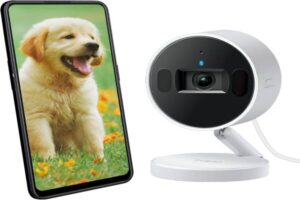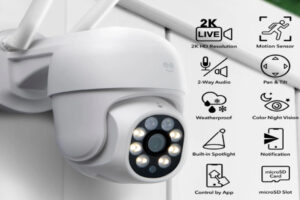
Many users suddenly find that the app crashes, freezes, fails to connect to Wi-Fi or doesn’t detect devices. The good thing is that most of these problems are simple and can be fixed without professional help. In this article, we will explore the most common reasons behind the Geeni app not working problem and how you can easily solve them. Each section covers detailed explanations so you can understand, and fix the issue step-by-step.
Checking Basic App and Device Settings
When the Geeni app not working problem appears the first step is to check some basic settings that many people often forget. Sometimes the app stops responding simply because of slow internet outdated software, or minor phone glitches. Always start by confirming your internet connection. Smart home apps require strong Wi-Fi signals, and if your network is unstable, the Geeni app may fail to connect or load. Also check if your phone’s Wi-Fi is connected to the correct 2.4GHz network, because most Geeni devices do not support 5GHz Wi-Fi. Another important step is restarting your phone. A simple reboot clears temporary cache resets background processes, and often fixes,app-related problems.
You should also check if your Geeni app is updated to the latest version. Old versions may contain bugs that cause the app to freeze or not function properly. Visit the Google Play Store or Apple App Store and update the app if available. Additionally, make sure your phone software is up to date because outdated system software can create compatibility issues. These small checks may sound simple but they are often the real reason behind the Geeni app not working error. Fixing these settings sometimes solves the issue instantly without needing any advanced troubleshooting.
Fixing Wi-Fi and Connectivity Problems
A very common reason behind the Geeni app not working issue is Wi-Fi trouble. Since Geeni devices depend completely on internet connectivity, even a small network interruption can break the app-device communication. First, verify that your Wi-Fi router is working properly. If the internet seems slow or unstable restart your router by switching it off for 10–15 seconds and turning it on again. This refreshes the network signals and often fixes connection problems. Another important point is checking whether your Wi-Fi is set to 2.4GHz. Many routers, broadcast both 2.4GHz and 5GHz signals and Geeni devices only support 2.4GHz. If your phone is connected to 5GHz the app might fail to communicate with the devices.
Another issue may occur if too many devices are connected to the same network. Overloaded networks slow down performance, causing the Geeni app to lag or disconnect. Try disconnecting extra devices temporarily to test the connection. Also ensure that your Wi-Fi password is correct and recently changed passwords have been updated in the Geeni app. Sometimes users update their router settings but forget to update them in the app which results in the Geeni app not working problem. Checking all these connectivity factors usually resolves most issues, involving smart home devices.
Updating and Reinstalling the Geeni App
If the Geeni app not working issue continues even after checking Wi-Fi and basic settings the next step is updating or reinstalling the app. Mobile apps often develop bugs over time and developers release updates to fix them. Go to your phone’s app store and search for the Geeni app. If an update option appears install it immediately. Updated versions usually improve performance fix crashes and enhance compatibility with the latest phone software.
If the app is already updated but still not working, try uninstalling and reinstalling it. This process clears corrupted data or broken files that may be causing the problem. After reinstalling, log in again and refresh your device list. Many users report that reinstalling the app instantly solves issues like lagging crashing, or failing to load devices. Also check the app permissions on your phone. The Geeni app needs access to Wi-Fi Bluetooth, camera location, and notifications. If any permission is blocked, the app may not function correctly. Reinstalling resets all permissions and gives the app a fresh start. This method is one of the most effective solutions for resolving the Geeni app, not working problem.
Resetting Smart Devices to Solve Issues
Sometimes the issue is not with the app but with the smart device itself. If your problem involves a device not responding or not showing up in the app try resetting the device. Each Geeni product has a reset method, usually involving holding the power button for a few seconds until the indicator light blinks. Resetting clears old configurations and prepares the device for new setup. After resetting, reconnect the device through the app. Make sure your phone is connected to the same Wi-Fi network during the setup.
Device resets also help fix problems caused by power fluctuations, firmware glitches, or incomplete updates. For example, Geeni smart bulbs may stop responding if the bulb firmware crashes. A factory reset brings the device back to default mode and allows a fresh start. This is one of the most reliable methods when dealing with the Geeni app not working problem especially when devices appear offline or unreachable.
Troubleshooting Server and App Glitches
There are times when the Geeni app not working issue comes from server-side problems. If Geeni servers are down for maintenance or experiencing outages the app may fail to load device information. In such situations, users cannot fix the issue on their own but they can verify the problem by checking social media, app store reviews, or Geeni’s support pages. You can also test by logging out and logging back into your Geeni account. This refreshes the app connection with the server.
Another helpful step is clearing the app cache. Cache files help apps run faster but they sometimes get corrupted and cause the app to freeze. Clearing cache from your phone’s settings often fixes these glitches. Keeping your phone storage free also matters because low storage makes apps crash frequently. These troubleshooting methods help restore proper functionality when the Geeni app not working problem is caused by temporary errors or server issues.
When to Contact Geeni Customer Support
If none of the fixes work, contacting customer support becomes necessary. The Geeni app not working problem may be related to deeper issues such as firmware errors, account problems or hardware defects. Geeni support can help check, your device model, app logs, and account settings to identify the issue. They may provide firmware updates, replace faulty devices or offer personalized troubleshooting instructions.
Support teams also help when devices behave differently across models or regions. Sometimes certain countries have restricted app versions,or limited features leading to the Geeni app not working situation. Customer service can guide you regarding compatibility and regional device rules. If your device is under warranty, they can replace or repair it if needed.
Conclusion
Facing the Geeni app not working problem is common, but most issues can be solved with simple steps. Checking basic settings, fixing Wi-Fi problems, updating the app resetting devices, and clearing cache usually solve the issue quickly. With the right approach, you can get your smart home running smoothly again.
Frequently Asked Questions
Why are my Geeni devices not connecting?
They may be on the wrong Wi-Fi band (5GHz instead of 2.4GHz) or need a reset.
Does Geeni work without internet?
No, the app and devices need internet to function properly.
Why are my Geeni devices not connecting?
They may be on the wrong Wi-Fi band (5GHz instead,of 2.4GHz) or need a reset.
Should I reinstall the Geeni app?
Yes, reinstalling can fix corrupted files and, solve most app-related issues.
Why is my Geeni camera offline?
Weak Wi-Fi signals, network changes, or outdated firmware may cause it.